

How to Make Your Dog Rap: A Pet Rap Video from One Photo
Make a dog rapping video with the Pet Rapper preset. Learn which pet photo to upload, how to choose settings, what credits cost, and how to download.
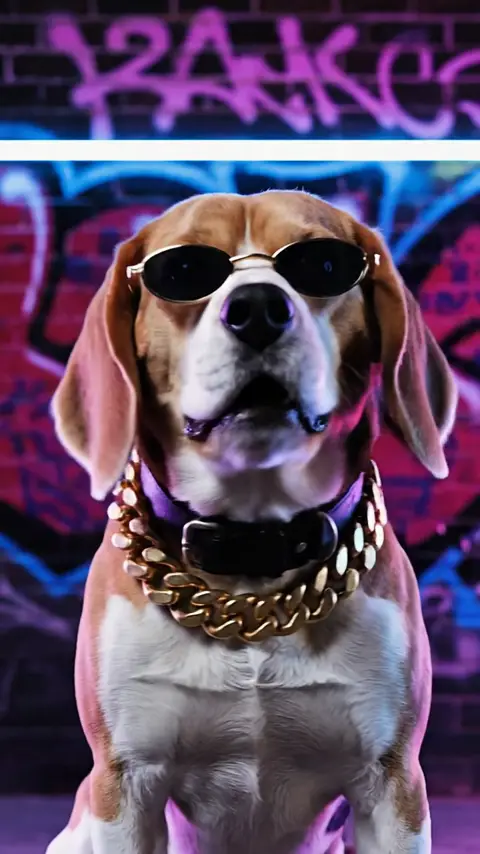
You can make a dog rapping video by uploading one pet photo to AI Rap Video and selecting Pet Rapper. The preset generates an animal-centered trap performance with rap vocals, a beat, head movement, and a playful accessory direction such as a gold chain and shades. Choose a short duration and output format, then download the finished MP4. Your dog does not need to perform for the camera.
The same Pet Rapper style can also be used with a cat photo. Think of it as a generated pet rap video rather than a recording of an animal actually speaking. Check the Pet Rapper preview for the intended atmosphere, then open the pet rap video generator when you have a suitable image.
Step 1: Take or choose one clear pet photo
Start with a single photo in which your dog is the obvious subject. Aim for a visible face, open view of the muzzle, and enough head and upper-body detail to understand the animal's shape. A calm photograph is useful; you do not need an action shot, a barking pose, or an image that already looks like a music-video frame.
Only upload photos you have the right to use. Your own pet photograph is a straightforward choice. If a photographer took the image, or it shows someone else's animal, confirm the relevant permission before using and sharing it. Do not assume that an image found online is available to turn into a public meme simply because it depicts a dog.
Sign in, check your credit balance, and upload that one image. Registration does not give free credits. Prepare the picture and plan the settings before purchasing credits for the generation. Avoid collages or photos where several pets compete for attention; the workflow uses a single source image and is easiest to plan around one clear animal subject.
Step 2: Choose the Pet Rapper preset
Select Pet Rapper, the preset designed for animal subjects. Its creative direction includes a trap verse, head bobbing, and a stylized rapper look. Accessories belong to the generated style, so there is no reason to put a chain or sunglasses on your dog for the source photo. Let the animal stay comfortable while you capture a natural image.
The preview illustrates a direction, not a promise that your dog's clip will have identical props, movements, or camera angles. AI-generated details can vary, especially when transforming an animal's face into a speaking performance. Treat the result as playful animation inspired by your photo, and review it before deciding whether to share it.
Use this preset because the subject is a pet, rather than choosing a human performance style solely for its background. If you want to understand how the available scenes differ, the six-style generator guide explains the full selection. For a dog rapping video, Pet Rapper is the style specifically aimed at that input.
Step 3: Pick duration, aspect ratio, and resolution
Choose 4, 6, or 8 seconds. A four-second clip can deliver a quick visual joke; eight seconds gives the generated performance more room to develop. The result is still a short pet rap moment, not an extended song or a sequence of trained tricks. Duration does not change the generation price.
Choose 9:16 for a vertical video or 16:9 for a horizontal one. Consider where the pet's face should sit in the final frame and which screen you plan to use. A clear photo with some room around the ears and head gives you a sensible starting point, though the selected aspect ratio does not guarantee a particular generated composition.
Choose 720p for 80 credits or 1080p for 100 credits. Both prices apply at every supported duration. An eight-second 720p pet clip costs the same 80 credits as a four-second 720p clip. Choose quality for the intended display and budget for each separate attempt, rather than expecting a shorter clip to reduce the cost.
Step 4: Generate, review, and download
Confirm your pet photo, Pet Rapper selection, and output options before submitting. Typical generation takes 2–5 minutes, but actual waiting time can vary. Give the request time to finish. Repeatedly submitting while waiting creates separate jobs rather than speeding up the original one, and each new generation has its own cost.
Once ready, play the result with sound. Check the animal's face, movement, framing, and overall comic effect. Download the MP4 after reviewing it. Credits charged for a failed generation are automatically refunded. A successfully generated result can still be different from your creative expectation, so use the preview and source-photo advice to make your starting choices deliberately.
Photo tips without making your dog perform
Get down near the animal's eye level and use soft, even light. Wait for a relaxed moment with the face visible. Avoid a toy across the muzzle, a leash obscuring the face, or strong motion blur. Keep ears and head inside the frame where possible instead of cropping tightly around the nose.
You do not need to make the dog bark, pose upright, wear props, or react to loud audio. A normal photograph supplies the reference; the model supplies the imagined performance. If taking a new photo becomes difficult, use an existing clear image you have permission to use instead. Photo quality advice should never turn a quick creative project into an uncomfortable session for the animal.
Frequently asked questions
Can I use a cat instead of a dog?
Yes. Pet Rapper is intended for animal subjects such as dogs and cats. Start with a clear image of the pet and review the result rather than assuming every expression or marking will be reproduced exactly.
Do I need an audio recording of my pet?
No. The model generates the beat and rap vocals. The workflow uses one photo and preset options, not a recording of barking or an uploaded backing track.
Is this a real talking-animal video?
It is an AI-generated performance. Describe it that way when sharing. To make your own, use the Pet Rapper generator, check the settings and credit cost, and download only after reviewing the finished clip.