

AI Rap Video Generator Guide: All Six Styles Explained
Compare all six AI Rap Video styles and learn how to turn one photo into a rap clip, choose output settings, budget credits, and download an MP4.
An AI rap video generator turns a single photo into a short performance with generated rap vocals and a beat. In AI Rap Video, you upload one image, select one of six styles, choose duration, aspect ratio, and resolution, then download an MP4. It is a preset-based workflow for creating a brief rap moment without filming yourself or editing a performance together.
The most useful first decision is the scene you want. An orange studio, an underground battle, and a birthday celebration communicate different ideas even when they start with the same portrait. This guide covers all six presets and the settings they share, so you can choose a direction before spending credits on a generation.
Step 1: Upload the right single photo
Sign in and choose one photo you have the right to use. For human styles, look for a clear face, visible mouth, and one obvious subject. For the pet style, use an animal photo. Permission matters for friends, relatives, and professional portraits too; access to an image is not the same as permission to transform and share it.
Check your balance before starting. Registration does not award free credits. Prepare the photo and decide on the intended output first, then purchase credits as needed. A simple, readable image is a better starting point than a collage with several competing faces. The generator takes one image, so avoid treating the upload as a storyboard or collection of separate scenes.
Step 2: Choose among all six rap styles
Hotel Lobby: orange-studio performance
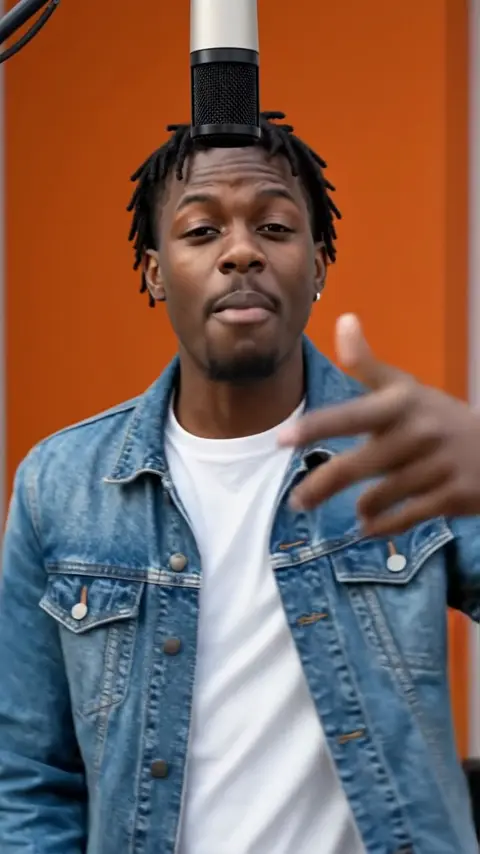
Hotel Lobby follows the orange-studio trend, with a hanging microphone and a bouncy trap verse delivered toward the camera. Choose it when you want a focused studio-session atmosphere. The name describes the style rather than a licensed song. Start a Hotel Lobby generation to use that preset with your own photo.
Rap Battle: warehouse energy
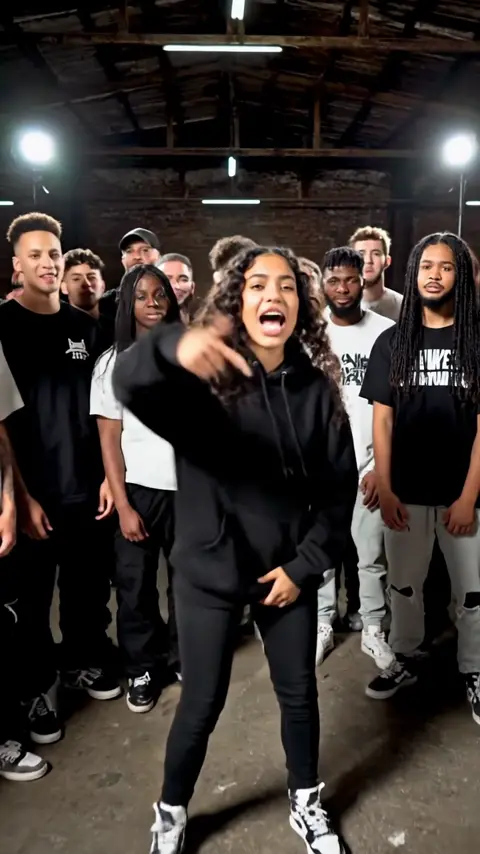
Rap Battle places the subject in an underground warehouse battle atmosphere, with a confident verse and a reacting crowd. It suits an assertive introduction or playful challenge. The crowd is part of the generated scene; this is still a single-photo input workflow, not a tool for uploading two performers and coordinating a duet.
Birthday Rap: a celebratory message
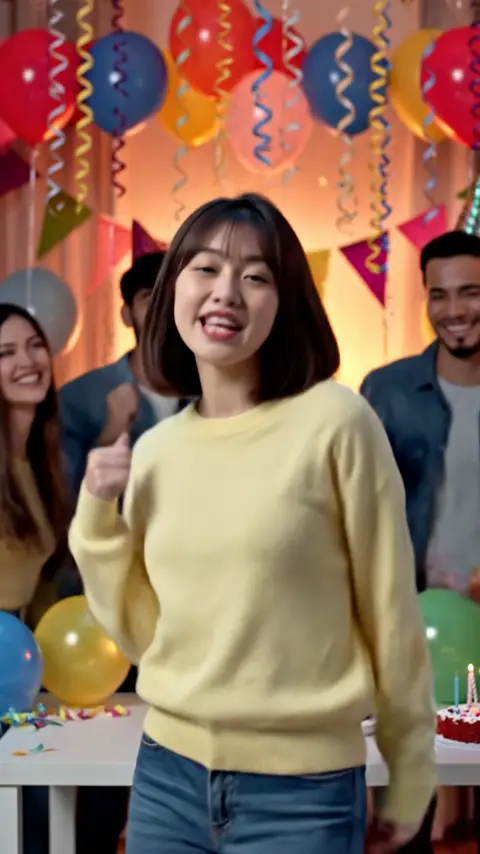
Birthday Rap uses a party setting with balloons, cake, and a birthday verse. It also supports an optional name for a shout-out. Choose it for a short birthday greeting rather than trying to make a studio preset communicate the occasion indirectly. The name option is a specific feature of this style, not a full custom-lyrics editor.
UK Drill: night-street atmosphere
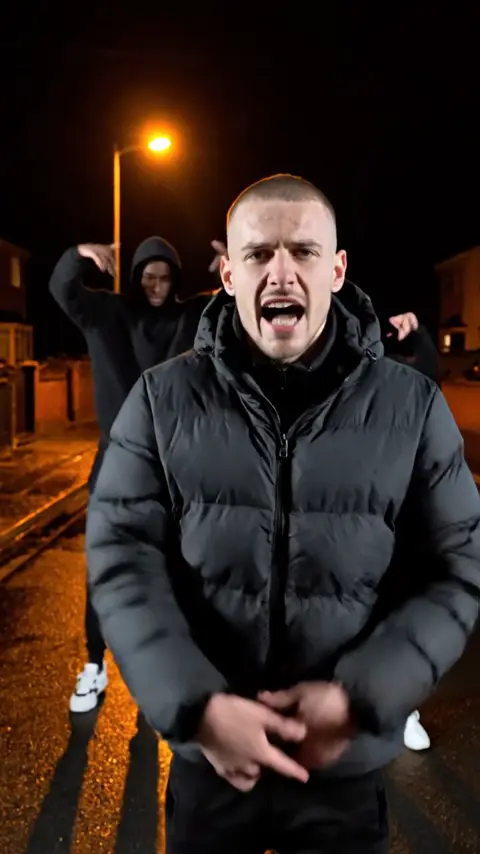
UK Drill aims for a cold, confident performance on late-night streets, with sliding 808s and a low-angle camera feel. It offers a darker setting than the warm orange studio. Use the preview to judge the intended visual mood before selecting it; generated scenes can differ in their specific details.
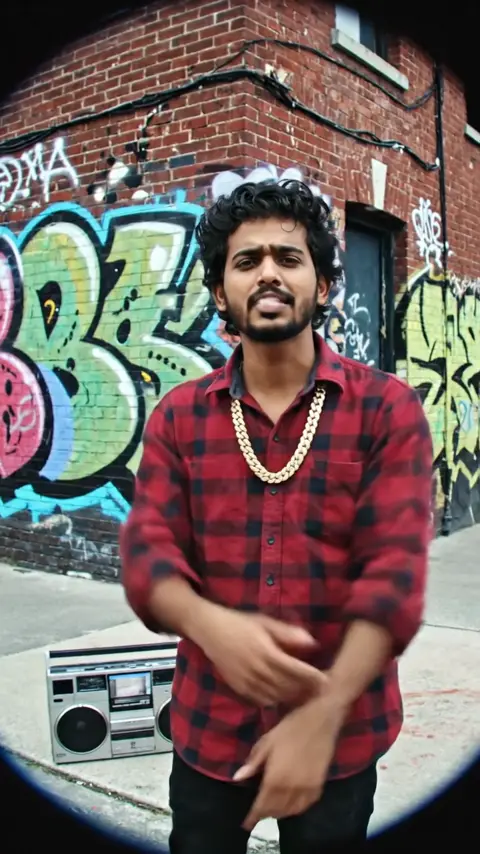
90s Old School: boom-bap and street-corner visuals
90s Old School combines a New York street-corner setting with boom-bap, a gold chain, a boombox, and a fisheye music-video look. Pick it for a retro visual direction. The preset provides that atmosphere without requiring period clothing, props, or an elaborate location in the original photograph.
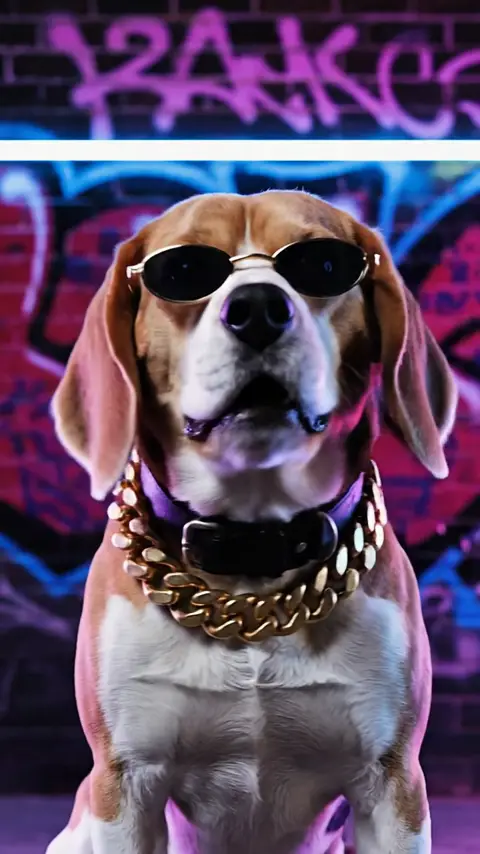
Pet Rapper: animal-centered performance
Pet Rapper is designed for an animal subject, such as your dog or cat. Its direction includes a trap verse, head movement, and accessories such as a gold chain and shades. Start with a pet photograph instead of a human portrait. The playful transformation is generated; it does not require training or dressing the animal.
Step 3: Choose duration, format, and quality
All six presets offer 4, 6, or 8 seconds. Choose four seconds for a quick beat of content, six for a middle option, or eight for more room within the short format. None of these settings produces a full song. Duration does not change the credit cost, so select it for the moment you want to show.
The aspect ratios are 9:16 and 16:9. Vertical framing suits a tall screen, while horizontal framing suits a widescreen presentation. Resolution is 720p at 80 credits or 1080p at 100 credits per generation. For example, an eight-second 720p request costs 80 credits, just like a four-second 720p request. Budget by resolution and number of generations.
Step 4: Generate and download your clip
Review the image and settings, submit, and allow time for processing. Typical generation takes 2–5 minutes, but timing can vary. When ready, watch the video with audio and download the MP4. Check that the framing and performance suit the intended recipient or audience before sharing. Credits charged for a failed generation are automatically refunded.
Photo tips before you spend credits
Keep the main face large enough to read, with even lighting and little obstruction. A hand across the mouth, heavy motion blur, or several faces may make the input less clear. For pets, photograph at the animal's eye level and wait for a calm moment. These are preparation tips, not guarantees about the generated result.
Frequently asked questions
Does the generator need my own recording?
No. The model generates audio alongside the video. You supply one photo and select presets; uploading a backing track, entering a complete lyric sheet, or coordinating multiple singers is not part of this workflow.
Can I use the same photo for different styles?
You can make new generations using different presets. Each request has its own cost. Compare the style previews first, and change one choice at a time if you want to understand what produced a different result.
Which style should I start with?
Start with the occasion: Birthday Rap for a greeting, Pet Rapper for an animal, or a performance setting that fits your idea. If the orange studio is your goal, go directly to Hotel Lobby and check the output options before submitting.