

How to Make a Hotel Lobby AI Video from One Photo
Make a Hotel Lobby AI video with an orange studio and hanging mic. Follow the photo, style, duration, format, quality, and download steps.
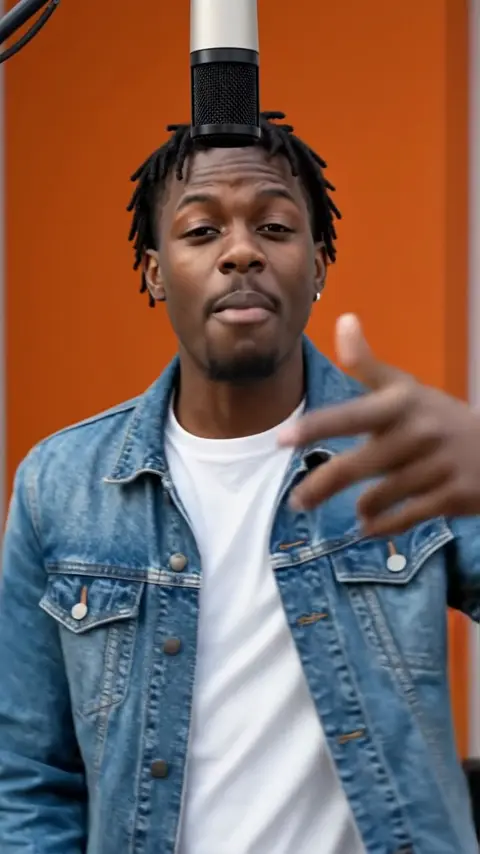
You can make a Hotel Lobby AI video by uploading one photo to AI Rap Video, selecting the Hotel Lobby preset, and generating a short rap clip. The style uses an orange studio, a hanging microphone, and a bouncy trap performance directed toward the camera. Choose 4, 6, or 8 seconds, then download the finished MP4. You do not need to film yourself performing.
Here, Hotel Lobby describes a visual trend and style. It is not a promise to reproduce a particular recording. The model generates the beat and rap vocals with the video. Start with the Hotel Lobby style preview to see the intended atmosphere, then open the Hotel Lobby AI video generator when your photo is ready.
Step 1: Pick and upload one photo
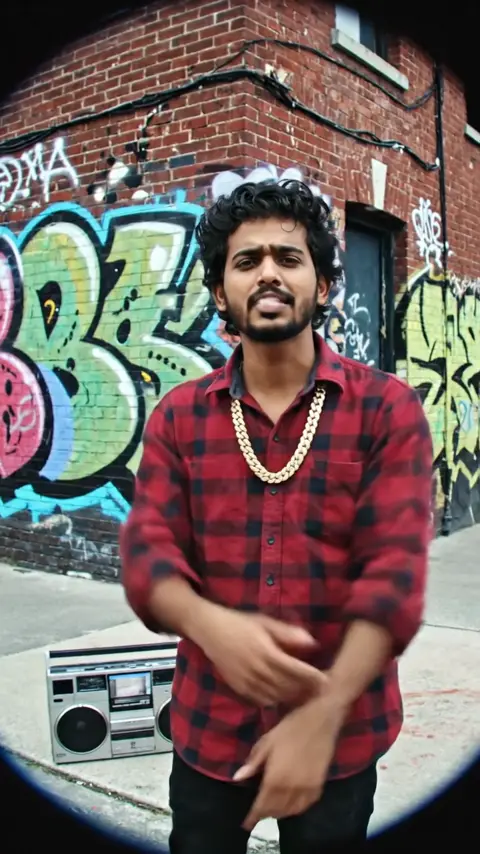
Choose a photo with one clearly visible person. A front-facing portrait is a practical starting point because the eyes, mouth, and face outline are easy to see. Use only a photo you own or have permission to use; having a copy saved on your phone does not automatically give you that permission. If the subject is someone else, ask before turning their portrait into a performance.
Sign in, check your credit balance, and upload the single photo. Registration does not include free credits, so plan for a credit purchase before your first generation. You are providing the source image, not a filmed rap performance. A natural expression and an unobstructed face give the model clearer visual information than a tiny face inside a busy group picture.
Step 2: Select the Hotel Lobby style
Choose Hotel Lobby in the style selector. This preset supplies the orange studio setting, hanging mic, and trap-oriented performance direction. You do not need to photograph yourself in a recording studio or add a microphone to the source image. Think of the photo as the subject reference and the preset as the creative direction.
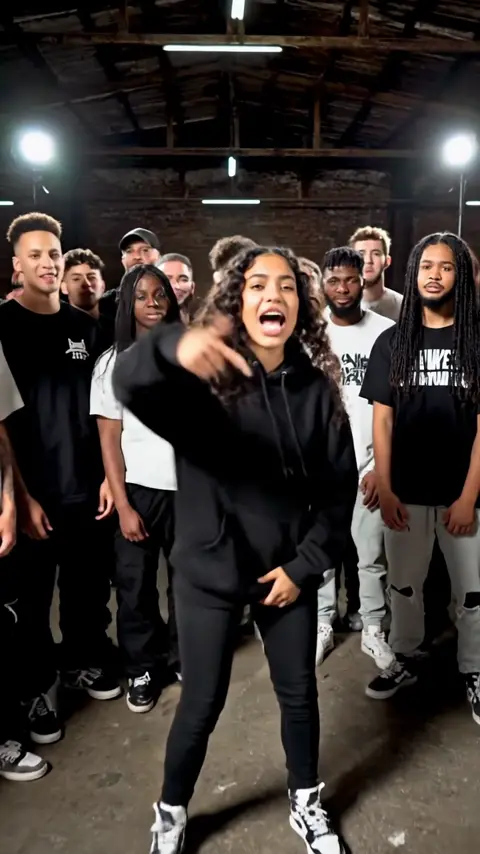
Look at the preview to decide whether that setting suits your idea. It illustrates the style rather than guaranteeing an identical camera move, outfit, or expression in your result. Generated details can vary. If you want a warehouse performance instead, explore Rap Battle; choosing a different preset changes the intended scene, not just a color filter.
Step 3: Set duration, aspect ratio, and resolution
The available durations are 4, 6, and 8 seconds. Four seconds works for a quick visual punch, while eight seconds gives the generated performance more time to unfold. These are short clips, so plan around one moment rather than a complete song or a long narrative. Duration does not change the credit price.
Choose 9:16 for a vertical composition or 16:9 for a horizontal one. Decide based on where you intend to show the video. A portrait-oriented post and a widescreen display need different framing; choosing before generation avoids relying on a later crop that might cut into the subject or microphone.
Choose 720p for 80 credits or 1080p for 100 credits. Those prices apply to each of the three durations. For example, a 4-second 1080p clip costs the same 100 credits as an 8-second 1080p clip. Pick resolution for your intended viewing size rather than assuming a shorter duration will reduce the charge.
Step 4: Generate, review, and download
Check the uploaded image, selected style, and output options before submitting. Generation typically takes 2–5 minutes, though actual processing time can vary. Wait for the job to finish rather than repeatedly submitting the same idea. Each new generation is a separate request with its own credit cost.
When the result is ready, watch it with sound. Check facial movement, framing, and whether the overall performance suits your intended post. Download the MP4 after reviewing it. If a generation fails, the credits charged for that failed generation are automatically refunded. A completed clip that differs from your creative preference is a different situation from a failed job.
Photo tips for the orange-studio look
Use even lighting so the mouth and eyes remain distinguishable. Avoid deep shadows across the face, sunglasses that hide the eyes, or a hand covering the mouth. The generated scene can be dramatic without the source portrait needing dramatic lighting. A simple background also makes it easier to identify the main subject.
Leave some space around the head and shoulders. A very tight crop gives less context, while a distant full-body shot may leave too little facial detail. You do not need to wear a costume or imitate a performance pose. Choose a clear image that represents the person well, then let the style preset supply its own setting.
Frequently asked questions
Is this a full music video?
It is a short AI-generated rap clip of 4, 6, or 8 seconds. Plan a concise intro, reaction, or social post around that length. The duration selector does not create a full-length track.
Do I need a song or recording?
No. The model generates beat and vocals as part of the output. The workflow uses your photo and preset selections; it does not require an uploaded backing track or a recorded performance.
Will my result exactly match the preview?
No exact match is promised. The preview helps you evaluate the Hotel Lobby trend's atmosphere, while your source photo and the generation determine the finished clip. Review the result before sharing it and describe it honestly as an AI-generated performance.
Can I try another look with the same idea?
Yes, you can choose another available preset for a new generation. Budget for each request and keep the photo and settings consistent if you want to compare styles meaningfully. For the orange studio and hanging mic, return to Hotel Lobby.