

How to Make a Birthday Rap Video from One Photo
Create a birthday rap video from one photo with the Birthday Rap preset, an optional name shout-out, and simple duration, format, and quality settings.
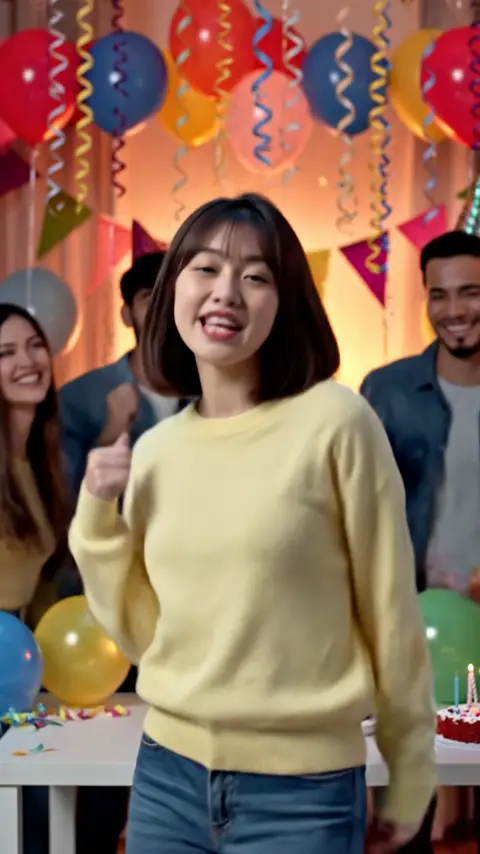
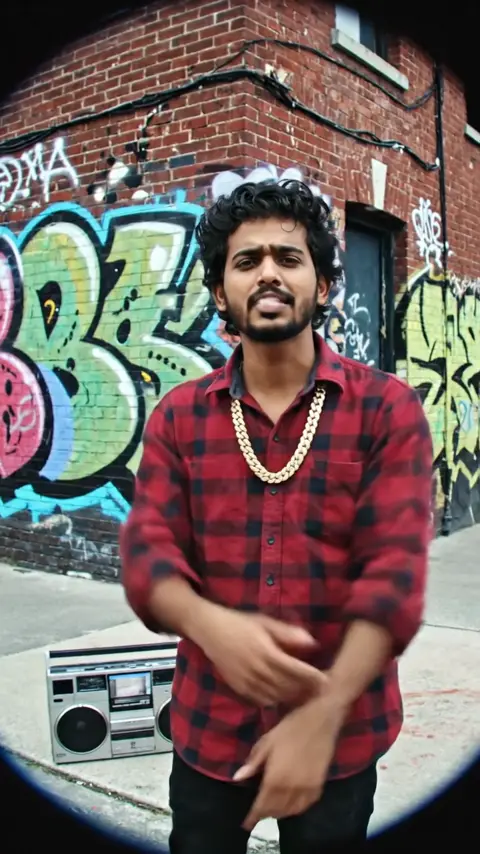
To make a birthday rap video from a photo, upload one portrait to AI Rap Video and choose Birthday Rap. The preset generates a short celebration with balloons, cake, rap vocals, and a beat. You can add an optional name for a birthday shout-out, choose 4, 6, or 8 seconds, and download the result as an MP4. No filmed performance is required.
This is a way to make a brief birthday greeting, rather than a full song or a long party montage. Start by checking the Birthday Rap style page. If its party atmosphere fits the person you are celebrating, open the birthday rap video generator and prepare a photo you have permission to use.
Step 1: Choose and upload the birthday portrait
Use one photo with a clearly visible subject. A recent portrait can make the greeting feel connected to the recipient, but clarity matters more than how festive the original scene looks. You do not need a picture taken beside a cake. The preset supplies the birthday setting, so a plain, well-lit portrait is a sensible starting point.
Only upload a photo you have the right to use. Ask the person or the relevant rights holder before transforming a portrait, particularly if you intend to post it publicly. A private birthday surprise still deserves care about whose image you use and where the finished clip will go. Avoid choosing an embarrassing photo just because it is available.
Sign in and check your credits before submitting. Registration does not include free credits. Decide whether you are making one greeting or budgeting for several separate attempts, then purchase credits accordingly. A new generation is a separate request, even when it uses the same portrait and celebrates the same person.
Step 2: Select Birthday Rap and optionally add a name
Choose Birthday Rap from the six style presets. Its direction includes a party setting, balloons, cake, and a birthday verse. Those elements are generated, so you do not need to stage props around the person before taking the source photo. The intended effect is a quick celebratory performance with the portrait subject as the focus.
This style supports an optional name for a shout-out in the lyrics. If you use that field, check the spelling before generation. It is an optional personalization choice, not a requirement to get started. The generated delivery can vary, so listen to the finished result before sending it to the recipient. Do not assume a particular pronunciation will be guaranteed.
The name field does not turn the tool into a custom-lyrics editor. Plan the greeting around the preset's birthday theme and short duration. If you have a longer personal message to deliver, you can write that separately when you share the downloaded clip; the generation workflow itself remains a single-photo, preset-based process.
Step 3: Set the greeting's length, shape, and quality
Choose 4, 6, or 8 seconds. Four seconds suits a quick surprise, while eight gives the generated birthday moment more room. Keep expectations tied to that length: a short shout-out is different from a full birthday song with multiple verses. All three durations have the same price at a given resolution.
Choose 9:16 for a tall video or 16:9 for a wide one. Think about whether the recipient is likely to watch it on a phone or whether you want to show it on a horizontal screen. Choose the composition before generating rather than depending on a later crop to fit a different display.
Resolution is 720p for 80 credits or 1080p for 100 credits per generation. Duration does not affect the charge. For example, both a six-second and an eight-second 1080p greeting cost 100 credits. For a deadline, leave time to review the result as well as waiting for processing; resolution is not a promise of a specific turnaround.
Step 4: Generate, listen, and download
Check the portrait, preset, optional name, and output settings, then submit. Generation usually takes 2–5 minutes, though timing can vary. Avoid starting at the exact moment you want to send the greeting. Allow room to watch it with audio and decide whether the finished performance suits the occasion before sharing.
When ready, review the face, framing, birthday atmosphere, and name delivery if you entered one. Download the MP4 once you are happy to use it. If the task fails, the credits charged for that failed generation are automatically refunded. If you decide to request a different completed version, budget for the new generation separately.
Photo tips for a thoughtful birthday clip
Favor a face that is well lit and large enough to see clearly. Avoid sunglasses, a hand over the mouth, or a group image with several equally prominent people. Leave some space around the head and shoulders. These choices give the model clearer source information without needing a studio photo or an elaborate party setup.
Consider the recipient's comfort as well as the image quality. A cheerful AI performance should feel welcome to the person being celebrated. Share it as an AI-generated birthday greeting and choose a suitable audience. A private message and a public post involve different expectations, even if the video file is exactly the same.
Frequently asked questions
Can I add the birthday person's name?
Yes. Birthday Rap supports an optional name shout-out. Check the input and listen to the result. The feature does not promise exact pronunciation or let you specify an entire lyric sheet.
Can I make a full birthday song?
The available output lengths are 4, 6, and 8 seconds. Plan a short greeting around those options rather than expecting a full-length song, multiple scenes, or several performers.
Do I need to record myself singing?
No. The model generates the rap vocals and beat with the video. Start with one permitted photo and the Birthday Rap preset, then choose the output settings and review the result before sending it.